
DEVELOPMENT SNAPSHOT #108 — Building a Platoon in Six Steps: The Formation Wizard
- Wednesday, November 18 2026
- Contributed by: Takeshi Miyaoka
- Views: 30
The in-game Platoon pattern editor has been rebuilt as a six-step wizard that walks you through filling in what a platoon needs. The old screen put platoon equipment, squads and logistics on a single page, and changing what was inside a squad meant opening a separate squad pattern editor. The aim is for the screen to show what to decide next, and to let you rework a squad right where it is.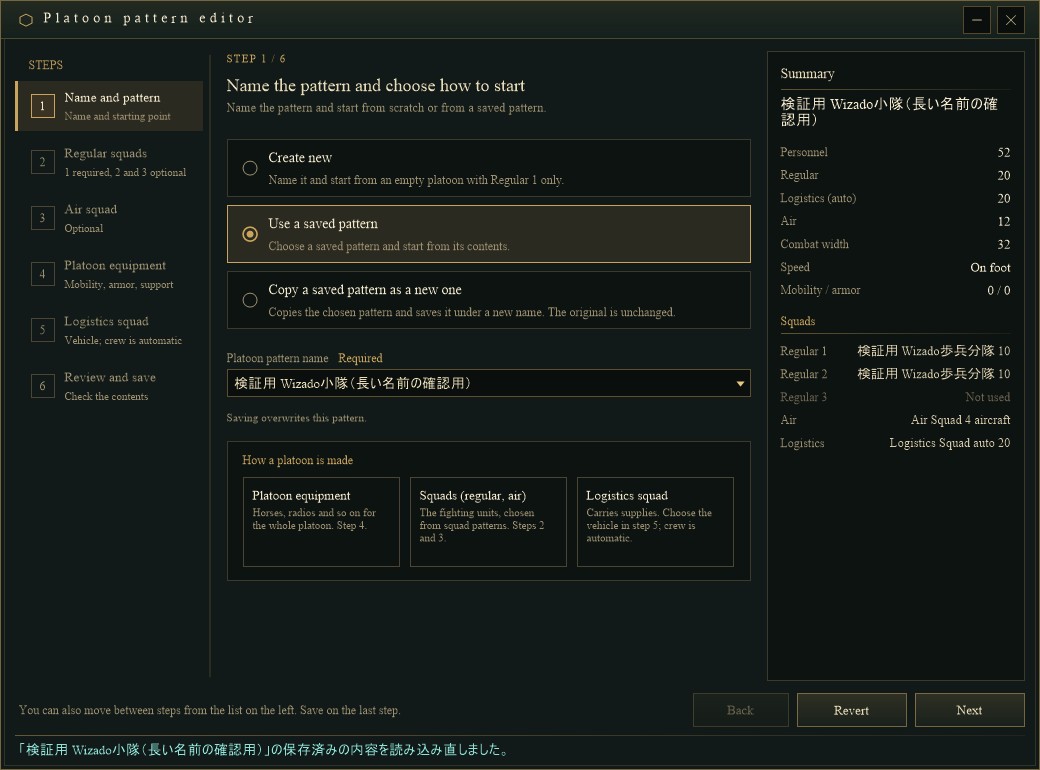
Step 1, Name and pattern (an actual screen from the Debug build). The steps are listed on the left, the inputs are in the middle and the Summary is on the right.
1. Six steps and a summary that stays in viewThe steps are: 1 Name and pattern, 2 Regular squads (1 required, 2 and 3 optional), 3 Air squad (optional), 4 Platoon equipment (mobility, armor, support), 5 Logistics squad (choose the vehicle; the crew is automatic), and 6 Review and save. Finished steps get a check mark in the list on the left, and clicking a step takes you back to it. The window keeps its previous size of 1040×770.
In step 1 you choose how to start: Create new, Use a saved pattern, or Copy a saved pattern as a new one. A new pattern starts from a platoon with only Regular 1 and the logistics squad, and it cannot reuse the name of a saved pattern. When you use a saved pattern, Revert at the bottom throws away all edits and reloads the saved contents. Below the choices, "How a platoon is made" briefly explains platoon equipment, squads and the logistics squad.
The Summary on the right stays in the same place on every step: personnel (regular, logistics, air), combat width, speed, mobility and armor counts, and the squad lineup.
2. Rework a squad inside its cardRegular, air and logistics squads each have a card. The pencil at the top right of a card puts that squad into editing; the other cards, the step list and the buttons at the bottom are locked meanwhile. You set the squad pattern name, crew and equipment inside the card and confirm with the check mark at the top right.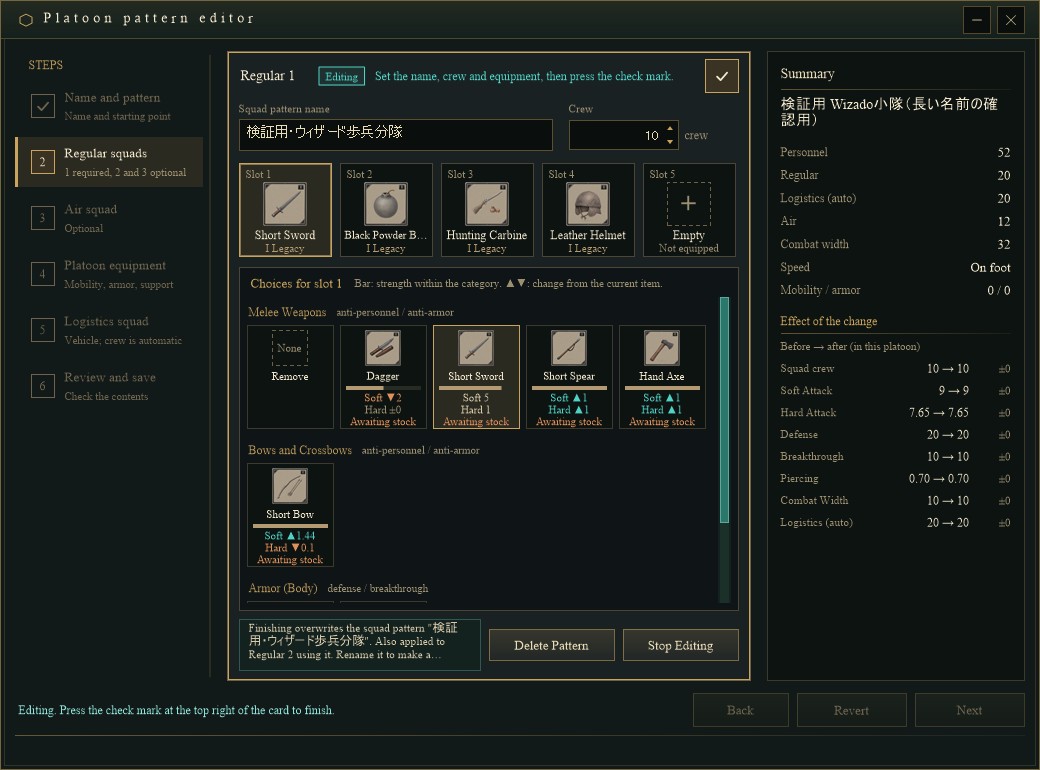
Editing Regular 1. Choosing an equipment slot lists the choices for that slot by category. On the right, Effect of the change shows the squad's values before and after.
Each choice shows an image, the name, a strength bar (tier color; regular squads compare within the category), two values (soft and hard attack for weapons, defense and breakthrough for armor, crew and defense for aircraft, speed and supplies for vehicles) and stock, with ▲▼ marking the difference from the current item. Regular squads do not offer items whose category overlaps another slot. Choices are laid out five to a row and scroll inside their own panel when there are many. An air squad takes one aircraft in each of five slots, and saving combines them into a count per aircraft type; aircraft that can no longer be built stay among the choices if they are in stock or already in the squad.
On confirmation, if a squad pattern of the same type with the same name exists, its contents are overwritten and the change also applies to other slots and platoons using it; a new name registers a new squad pattern. Before you confirm, the note under the card says which of the two will happen and how many slots and platoons are affected. Stop Editing discards the changes, and Delete Pattern asks before deleting.
3. Review, then saveStep 6 lists the pattern name, regular squads, air squad, platoon equipment and logistics squad, together with the platoon's abilities when fully equipped. Change on each row returns to that step. As before, saving also applies to platoons already formed with the pattern, through the usual reorganization process.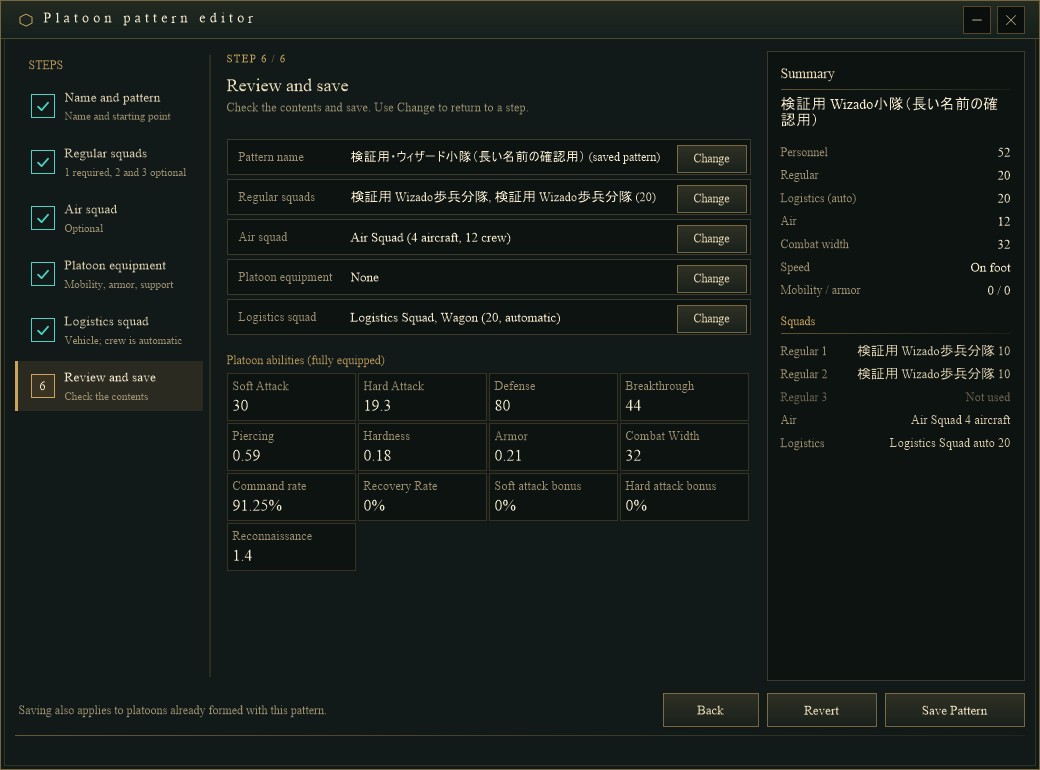
Review and save for a platoon with two regular squads, an air squad (4 aircraft) and a logistics squad (wagons), showing Soft Attack 30, Hard Attack 19.3, Defense 80 and more.
What I checkedIn the Debug build, the 1040×770 window was opened from the game screen without being shown, and every step was operated and captured: creating new and copying, adding Regular 2, editing and confirming Regular 1 (registering a new squad pattern), overwriting under the same name and seeing it apply to Regular 1 and 2, the delete confirmation, editing the air squad (4 aircraft from five slots), editing the logistics squad, saving, changing a saved pattern and reverting, and the English display. Each stage was also checked automatically for controls crossing their frames, bold text and a single window title, and 51 focused tests for platoon and squad patterns passed before the change went into main. The master data editor's platoon pattern screen keeps its previous layout.
About the imagesAll images are actual game screens, captured on November 17 by starting the Debug build without showing its window. They were taken with a nation in the master data state, so the choices show "Awaiting stock". The platoon and squad pattern names were typed in Japanese for the check and are shown as entered.
How the regiment window and platoon placement divide the work: DEVELOPMENT SNAPSHOT #94 — Who Leads and How Strong: The Regiment Window Rebuilt
Appointments from the platoon window: DEVELOPMENT SNAPSHOT #76 — Appoint from the Platoon Window: Candidates Shown by What the Post Needs
Check the files currently available and the development status on the download page